Monday, June 15, 2020

How to perform migration of SQL database to Azure with minimum downtime.


As discussed earlier there are different methods of performing both ONLINE\OFFLINE database migrations. When we need to migrate databases with minimal downtime we will opt for online migration. In this article we will see how we can perform online migration of an on-premise SQL Server database to Azure SQL Database using Transactional Replication.

Below are the steps we will follow for migrating the database:

·         Create an On-Premise SQL Database. 
·         Create an Azure SQL Instance. Read this on how to do this.
·         Create Azure SQL Database. Read this on how to do this.
·         Create Transactional Replication between On-premise and Azure SQL database.
·         Verify all the objects migrated to Azure.
·         Remove transactional replication.


Create an On-Premise sample SQL Server Database:

All the sample databases which we can use for testing and learning can be downloaded from here. I have downloaded and created the “AdventureWorks2017” database in my local instance. 

Change the database owner of the on-premise database ‘AdventureWorks2017’ to ‘sa’

Create Transactional Replication between On-premise and Azure SQL database:

Before configuring replication between on-premise and Azure SQL database we should keep in mind below are the limitations as of till date:

·         Only Transactional Replication and Snapshot Replication can be configured between on-premise and Azure SQL database. Other types of replications are not supported.
·         The On-premise database acts as both publisher and distributor.
·         Subscriptions should always be PUSH SUBSCRIBERs.
·         Replication can only use SQL authentication to connect to the Azure database.
·         Replicated tables must have a Primary key.

Connect to the on-premise SQL instance. Expand the ‘Replication’ tab and right-click on ‘Local Publications’ and select ‘New Publication’ as shown below:


Select the database “AdventureWorks2017” which we want to replicate to Azure.


Select ‘Transactional publication’ and click on ‘Next’


Now select the objects that need to be replicated. Here we will replicate only 5 tables of ‘AdventureWorks2017’ database instead of all the objects. After selecting all or required objects click on ‘Next’


In next window we can select the rows of a table that we don't want to replicate, we will not filter any rows and click on ‘Next’


In this window select ‘create a snapshot immediately’ option and click on ‘Next’


Click on ‘Security Settings’ and as this not a production environment I will select ‘Run under the SQL Server Agent service account’ and in the ‘Connect to the Publisher' section either we can impersonate the account or use an admin login. I have created an administrator SQL login named ‘azureadmin’, so I will use the same


Select ‘Create the publication’ and click ‘Next’


Give the publication a name and click on ‘Finish’. For easy identification, I am using my database name itself as a publication name also.


Now right-click on ‘Local Subscriptions’ and select ‘New Subscriptions’ 


and select create the subscription


in next window select Publisher and the publication created earlier


Select ‘Run all agents at the Distributor’ and click ‘Next’


Click on ‘Add SQL Server Subscriber’ and enter the azure connection string on which we have the empty database created with the admin login credentials


Even though the connection string we provided is correct, we may receive below error after clicking on 'Connect'


Here the issue is we need to include ‘secure’ in the connection string like below 


Now we should see ‘AdventureWorks2017’ database under ‘Subscription Database’ and Click on ‘Next’


In this window click on the 3 dots and select the required options for Distribution agent and Subscriber as below


In ‘Synchronization Schedule’ we can select ‘Run on-demand only’ and click Next


Next select ‘Immediately’ for ‘Initialize when’ option


Select ‘Create the subscription(s)’ and click on ‘Finish’


Now we can see replication set up completed successfully.


Now connect to the Azure SQL database server using the connection string and check we can see all the selected objects have been replicated to the Azure SQL database. Here I have connected to the azure instance using SSMS.


Now after making sure all the objects got replicated to Azure then we need to divert the application connections to point to the Azure SQL database instead of the on-premise database. Once the connections are diverted then we need to validate all the transactions got replicated successfully. Once we are sure everything got replicated then we can disable the transaction replication on the on-premise database.

As we can see in the online migration, the duration the database will be unavailable is during the time when application connections are being diverted from on-premise to Azure.

In next article, we will see how to migrate an on-premise SQL Server database to the Azure SQL database using offline migration.


Thanks VV!!


#azure, #azuresqldatabase #databasemigration #cloudmigration #sqlserver #onlinemigration


Monday, June 8, 2020

How to create Azure SQL Instance and Azure SQL Database?


In this article, we will see how to create an Azure SQL instance and how to create an empty Azure SQL database. Here we will create an Azure SQL instance named ‘databasemigration’ and then we will create an Azure SQL database named ‘AdventureWorks2017’ in it. I already have a resource group named ‘DBMigration’ in which I will create these resources. If you don't have a resource group first you need to create one.

Resource Group:

If vegetables are assumed as resources then the resource group is like a vegetable box that can contain different vegetables. As in a vegetable box, we can keep different vegetables the same way, a resource group can contain different resources in it like virtual machines, SQL instances, databases, and so on. It is up to us which resources to be kept in which resource group. Here we will not discuss how to create a resource group.


Creating new “Azure SQL Server”:


Login to the Azure portal “https://portal.azure.com” and click on “Create a resource”


In search, search for “Azure SQL” and select it


Now Click on “Create”


In the next page click on “Create” under “SQL Databases”


Under “Resource Group” if the resource group doesn’t exist create a new one. I have selected a resource group named “DBMigration” which I already have


In “Server” space click on “Create new”


Enter the ‘Server name’, here I am creating a SQL server named “databasemigration” and create an admin login under the “Server admin login” section, here I am creating a login named “azureadmin” and provide a password this would be the administrator login for the SQL Server. Select the location of the server, I want to store all my resources in the same location, so I am selecting the “Central US” location to store all the resources. And click on ‘OK’.


Creating Azure SQL Database:

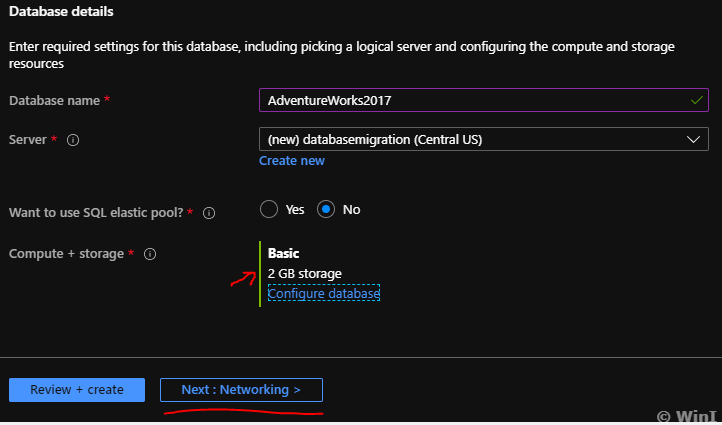
Now the server gets created, mention the database name as “AdventureWorks2017” in the 'Database name' section and select the required “Compute+storage” by clicking on “Configure database” option. In this "Compute Storage" option, we can select which tier, total size, and DTUs, in simple terms we can select the required storage and performance options.


We will have the flexibility to select the number of DTUs required and the maximum size of the database. As I want to create a simple database I will choose the minimal size and DTUs required. Click on the required Tier and after selecting the required size click on 'Apply'. So, I am selecting a ‘Basic’ tier with 5 DTUs and max database size as 2 GB. 


Next Click on Networking


We can connect to the server we created either publicly by using ‘Public endpoint’ or we can connect privately by using ‘Private endpoint’. Here let's select the ‘Public endpoint’, so that we can access using the public endpoint.


Under ‘Firewall rules’, select ‘No’ for “Allow Azure services and resources to access this server” which is not required for us at the moment,  select “Yes” for “Add current client IP address”


Click on “Additional settings”, in additional settings under “Use existing data” select “None” as we want to create an empty database. If we select ‘sample’, the database will be created with sample tables and we can select the ‘Backup’ option if we want to create the new database by restoring any of the backup available on any of the Azure regions. Leave ‘Collation’ to the default value and click on ‘Tags’


Leave tags empty for now and click on ‘Review+create’


In the final window we can see all the options we selected, we can also see how much this database and server is going to cost for us. Cross-check all the options and click on ‘Create’


Now we can see deployment is in progress


Once deployment is complete we can see a new server named ‘databasemigration’ and a new database named ‘AdventureWorks2017’ got created in the location ‘Central US’ we selected.


Now go to the ‘Home’ page of the Azure portal and click on ‘SQL databases’, now we can see the new database 'AdventureWorks2017' we just created


How to query Azure SQL Database:

Click on the database ‘AdventureWorks2017’ database which we just created and we can different  options available on the left side and click on ‘Query editor(preview)’ and here enter the admin login credentials which we created earlier ‘azureadmin’ during server creation and Click on ‘OK’.


Now new query window will open for the database and let's run a simple query to check the number of user objects in the database


The output should be ‘0’ as we created an empty database. 

We can use the Azure Data Studio (ADS) to connect and query this newly created Azure SQL database. Read here: How to use ADS.

So to recap, in this article we discussed how to create a new Azure SQL database server, new azure SQL database, how to connect and query the azure SQL database.

In the next article, we will see how to migrate an on-premise SQL Server database to the Azure SQL database using online migration with minimal downtime.

Thanks VV!!


#azure #azuresql #azuresqldatabase #sql #azuresqlserver #AzureSQL

Monday, June 1, 2020

Steps to migrate SQL Server Database to Azure.


Based on the criticality of the database, migration can be classified into two ways:

·           Offline Migration.
·           Online Migration.


Offline Migration:

As the names are self-explanatory if the database that needs to be migrated to Azure is not a highly critical database and downtime is allowed then we can migrate the database through offline migration. During offline migration, the databases will not be available for access and in turn, the applications relying on it also will not be available.

Online Migration:

If the database is highly critical then we should plan an online migration of the database with very minimal downtime. In Online migrations, the source database will be available during migration activity and once the entire database is migrated then the application connections need to be pointed newly migrated Azure database. After diverting connections to the Azure database any pending transactions from the source servers needs to be replicated to the Azure database.

Which database can be migrated to Azure:

We can migrate a SQL Server database if the database is of SQL Server 2005 and above version. We can migrate DB2, MySQL, MongoDB, Amazon Web Services Elastic Compute Cloud (AWS EC2), Compute Engine (Google Cloud Platform (GCP)), Amazon Relational Database (AWS RDS) and many others. The complete list of different source databases that can be migrated to Azure is mentioned here.


Which Azure tier should I move my on-premise database to?

Another important decision we need to make before migrating the on-premise database is “Which Azure tier subscription should I move my database to?”. As we know there are different tiers in Azure like Basic, Standard, and Premium. Each tier is suitable for specific workloads, performance requirements, space requirements, and so on. This link helps in determining the suitable tier and DTU’s.


How much money you can save by migrating to Azure:

We can use the Total Cost of Ownership (TCO) calculator which gives us details of how much money we would be saving if we migrate our existing environment to Azure. Once we enter the details of our existing environment like how many servers, databases, their configuration and so on this calculator will generate a detailed report showing what are different costs involved in our environment and how much cost we would be saving if we migrate to Azure. 

https://azure.microsoft.com/en-in/pricing/tco/calculator/

 Below is one small part of the TCO report, along with this it provides much more detailed information report:


Tools\Methods Available For SQL Server Database Migration:

There are many tools and methods available for migrating an on-premise SQL database to Azure. Depending on the environment and requirement each tool can be used for migration.

·        Data Migration Assistance (DMA)
·        Database Migration Service (DMS)
·        Transactional Replication
·        Bulk Load
·        Export Data-tier Application
·        Deploy Database to Microsoft Azure

The migration tools list is not limited to these, there are numerous others as well. The entire list of Microsoft and Third-Party tools that are useful in Planning, Assessment, and Migration of databases from different sources to Azure is mentioned in detail in this link.

We will discuss two important tools that are very useful during database migrations that are DMA and DMS.

Data Migration Assistance (DMA):

This is one of the very useful tools that help during database migrations. With this tool, we can find out what existing features of our source server are invalid in the Azure environment. This tool is helpful in identifying the unsupported or deprecated features of the source database. With the DMA version 5.2.4764.4 we can assess both the database engine and SSIS.

Below is sample assessment report of DMA:

You can see in the screenshot after assessing my SQL Server 2017 version database it is giving details like that there are 2 “Unsupported Features” in my database. SQL Server Agent jobs and Azure Key Vault integration. It will give clear information on what would be the impact and will provide recommendations like what are the alternatives\fixes for the issues found. This assessment report can be saved for reviewing later.


Remember we can assess and migrate as well the source database with the DMA tool. But DMA is mainly preferred for migrations of small databases and also we can migrate one database at a time.


Database Migrations Service (DMS):

DMS tool helps in migrating databases both offline and online. Azure Standard tier supports only offline migration. Online migration is supported only with the premium pricing tier of the Azure. DMS is useful in migrating big databases and with DMS we can migrating multiple databases at a time.


Below are the basic steps to migrate SQL database to Azure:

Below steps are written assuming we are migrating the on-premise SQL database to an Azure database. In future blogs, we will see how to migrate the SQL database to the Azure database using different tools and methods.


·         Gather details of the on-premise SQL database.
·         Create an Azure SQL Server.
·         Create an Azure SQL database.
·         Install Data Migration Assistant (DMA).
·         Assess the source database using DMA.
·         Fix if any discrepancies found.
·         Test the migration in the lower environment first.
·         Migrate the schema and data from the source database  to the Azure database.
·         Verify the migrated data in the Azure database.


The above are not fixed migration steps. Depending on the type of migration, source server, target server, size these steps will change. Also haven’t included standard steps that need to be followed for any type of database maintenance activities like scheduling during a suitable maintenance window, prior client approvals, backups, and so on.

Post Migration:

Once the database is migrated successfully, point the applications to Azure and perform testing. Make sure the required logins also migrated and perform if any performance tuning required.

Hope this article has given you a brief idea about different steps involved in the database migration project.

Let me know in the comments section below which method and tool you use for performing database migrations in your environment.


Thanks VV!!


#azure #azuredatabase #databasemigration #sqlserver #azuresql #migration #sql #AzureSQL