In
previous article we discussed what is Azure Data Studio (ADS), its uses, and when to use SSMS and when to use ADS.
We
can download the latest version of SSMS from below link:
In this article, we will see how to install ADS and few features of ADS.
How to Install ADS:
ADS
installation is simple and straightforward. It is free to download the setup
file from here. As of today below version of the file will be downloaded for the Windows machine.

Once the file is downloaded, double click on the exe and accept the license and proceed
clicking 'Next' and finally, click on 'Install'.


After
successful installation, go to Start and open ADS by clicking on the below icon.

Below is the welcome page of
ADS at the time of writing this article.


There
have been changes to the ADS layout recently and below is how the new ADS the welcome screen looks like:

Changing the look Of
ADS:
We
can change the color Theme as shown in below snippet: Here I am changing the color theme of my ADS to 'blue'
Viewing and
Modifying Keyboard Shortcuts:
In the below snippet, we will see how to view the Keyboard Shortcuts of ADS and how we can modify the shortcuts.
Below I’m modifying the shortcut for the “comment” line in code. The default shortcut for commenting out a line in code is “Ctrl+k Ctrl+c”, I am modifying it to “Ctrl+L Ctrl+C”
Below I’m modifying the shortcut for the “comment” line in code. The default shortcut for commenting out a line in code is “Ctrl+k Ctrl+c”, I am modifying it to “Ctrl+L Ctrl+C”
With
the new update to ADS, we can view these ‘Color Theme’ and ‘Keyboard Shorcuts’ under
‘File’ as shown below:

Run the first query in
ADS:
Now
let’s run a simple query and will see how we can convert the output to a chart
easily. On the welcome screen click on “New Query”

Or
we can open ‘New Query’ like below:

This
opens a new query window. First, we need to connect to a server for that click
on “Connect”

Connecting to
Instance:
Now
enter “Connection Details”, here I want to query data from my Azure database so
providing my Azure database connection string in “Server”, Authentication type
“SQL Login” and its credentials. After providing all details click on “Connect”. The way to connect to an on-premise instance also similar.

Now the connection will establish to the Azure database.
Let’s run a simple query on "SalesLT.ProductCategory" this is one of the tables in my “ADW” database.
Let’s run a simple query on "SalesLT.ProductCategory" this is one of the tables in my “ADW” database.
“select * from SalesLT.ProductCategory”
Select
ADW database from the drop-down list in “Change connection”, if it is not already
selected.

Write the query and click on 'Run'. After
clicking on “Run”, we can see the output of the query

On
right-hand side, we can see different icons, each of them helps in saving the
query result to CSV, Excel, JSON, XML.

Convert OutPut To
Chart Format:
On the right side of the “Results” window, we can see the icon as pointed below,

Clicking
on it will convert the query output to a chart.

There
are different types of charts available and based on our requirement we can
select each type of chart like Pie chart, table format, Doughnut, and so on.

Convert OutPut To
3D Visualization:
Now
to visualize the data in 3D format, go to the home screen in ADS, and click on “Extensions”.

Or
use shortcut “Ctrl+Shift+x” to open ‘Extensions’
We
can see different extensions that are available to install. In ADS we get a lot
number of “Extensions”, these extensions help in adding more features to ADS. For
example, by default, we cannot see SQL Agent Jobs in ADS, so if we want to see
SQL Agent jobs in ADS we need to install an extension named “SQL Server Agent”,
after installing this extension we will be able to see SQL Agent jobs in ADS.
Similarly there are many useful extensions that can be downloaded instantly. Another
good thing about these extensions is we can either disable or uninstall these extensions if we no longer require those.
For converting the query outputs to 3D charts we need to install an extension named “SandDance”. To install it in the extension search box type “SandDance”
and click on install.

It
will get installed immediately, now open a new query window by pressing “Ctrl+N”
Run
the same above query again and in the” Results” window we can see on the right
side a new icon appears

Clicking
on that icon will convert our output similar to below

Now
Click on the highlighted cubicle icon

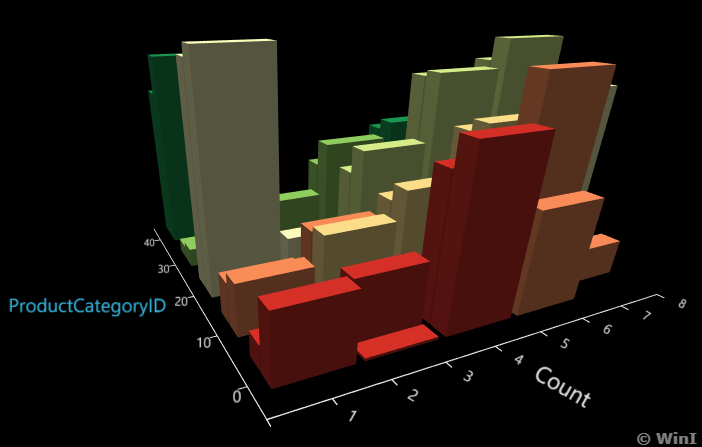
and select the values for “X Axis:” as “Name”, “Z Axis:” as “ProductCategoryID” and “Color by:” as “Name”
and select the values for “X Axis:” as “Name”, “Z Axis:” as “ProductCategoryID” and “Color by:” as “Name”

Now the output should convert as below

Same
way we can convert the output into different 3D charts available.

There
are many other features of ADS like the creation of custom Insights, source
control, server groups, and so on.
Let
me know which feature you like in ADS in the comments section below.
Thanks
VV!!
#SQL #SQLServer #SSMS #ADS #AzureDataStudio #SQLServerManagementStudio