Monday, August 22, 2016

The feature you are trying to use is on a network resource that is unavailable. Click OK to try again, or enter an alternate path to a folder containing the installation package ‘sql_bids.msi’ in the box below.

The feature you are trying to use is on a network resource that is unavailable. Click OK to try again, or enter an alternate path to a folder containing the installation package ‘sql_bids.msi’ in the box below.

The feature you are trying to use is on a network resource that is unavailable. Click OK to try again, or enter an alternate path to a folder containing the installation package ‘sql_tools.msi’ in the box below.


While I was working on an SQL Server 2008 R2 Service Pack 3 uninstallation it failed with below errors. Warnings from several forums and blogs came back to my mind like ‘pray to god that your service pack uninstallation will never fail’ , like some old prophecy haunting me. Anyways the result was uninstallation failed and when I clicked on ‘Ignore’ it started progressing further but failed with another same kind of error, clicked on ‘ignore’ and successfully uninstallation failed to uninstall successfully.


Irrespective of any service pack the uninstallation steps remain same. Here I am uninstalling SP3 of SQL Server 2008 R2 version.

GO to Control Panel ==> Add/Remove Programs ==> View Installed Updates


Now Right click on Service Pack 3 for  and select ‘Uninstall’


That will take you to this window:
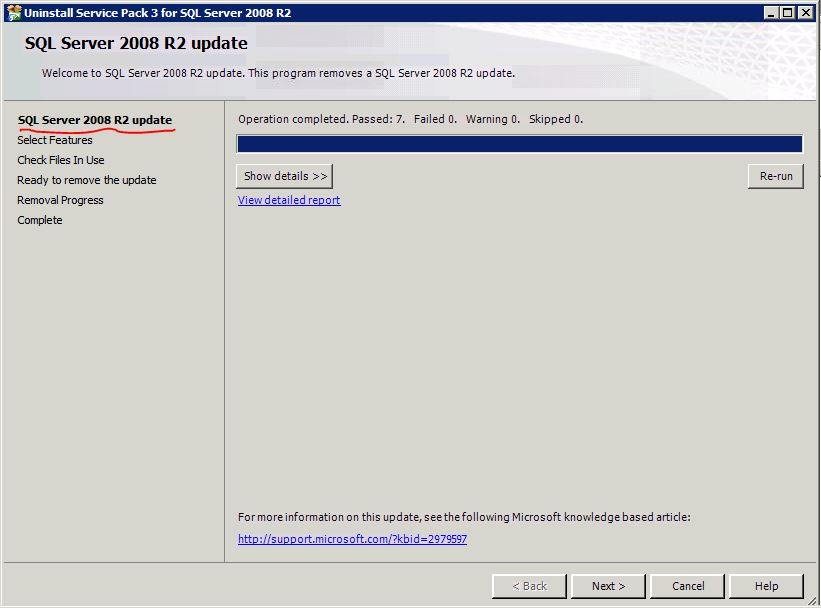


Select the features for which you want to uninstall SP3, ideally you need to select all the features:


After clicking on “Next” it will take you to ‘Files in Use’ window and once its done click on next


Here you will see ‘Ready to remove features’ window. Here verify all the features got selected and correct instance got selected and other parameters are selected correctly.


Now click on ‘Remove’ and this will start the uninstallation process. You will see the progress as below and even the uninstallation completes successfully if there are no issues found.


Coming to my case obviously it was looking for some disk like ‘Z:\x64\setup’ and obviously, there is no such disk in the server. I searched under 'Programs *' folders if there is any ‘setup’ folder under any of ‘x64’ SQL folders but I haven’t found any. There are different solutions suggested online but as a first step, I copied the setup files of the same version as my current instance which is SQL Server 2008 R2 to the server. Then I searched for the ‘\x64\setup’ and it was indeed there.

Now I started the uninstallation again and when I encountered the above error, this time, I clicked on ‘Browse’ in the error window and gave the path of ‘\x64\setup’ folder from the setup files I copied. After copying, I clicked on ‘ok’ and the uninstallation started progressing and I did the same for the second error as well.

This time, uninstallation completed successfully.


Thanks VV!!

Tuesday, June 21, 2016

How to convert PowerShell script into an exe.

Task: I want to run a script regularly on different servers.

We face this kind of tasks several times, basic examples like to find when the server was last rebooted or what are the current free spaces of all disks of a particular server and so on.

So basically I have a script to do some ‘xyz’ work and I want to use the same script in many other servers and even my team members also should be able to run it when needed. So the better way to do is converting the PowerShell script into an exe and distribute the exe to all my team members or place it in a shared location where my entire team has access.

How to convert PowerShell script to exe:


1.    To do this first you need to install ‘PowerGUI Script Editor’ if you don’t have it already.


2.    Open ‘PowerGUI Script Editor’: Start à All Programs à PowerGUI à PowerGUI Script Editor


3.    Open new page by pressing ‘Ctrl+N’. Paste the script you want to convert to exe.


4.    Execute the script by clicking ‘Play’ button which will be on top or by pressing shortcut ‘F5’. This is just to test script is working without any errors. My sample script to get last reboot date time is giving results as expected.


             Now steps to convert PowerShell script to exe

5.    Click on ‘Tools’ and select ‘Compile Script’ or shortcut for this is Ctrl+F9. Screenshot below:


6.    Once compile script window opens give the path to save the script as exe, as shown in screenshot below:


7.    Now you have the exe created for our script.


8.    Now you can run your script by just double-clicking the exe. This exe will run fine in any of the machines where PowerShell is installed.


Please share what are the steps you follow to convert your scripts to run on different servers.


Thanks VV!!

Wednesday, April 6, 2016

How to install NetFx3?

While installing SQL Server 2012 SP1 on Windows 2012 R2 server installation fails with below error:

‘Error while enabling windows feature : NetFx3, Error Code : -2146498298 , Please try enabling Windows feature : NetFx3 from Windows management tools and then run setup again.’


Reason is ‘.NET Framework 3.5’ doesn’t come inbuilt with Win 2012 R2, we need to install it.

Follow below steps to install Netfx3:

Open server manager in the server and click on ‘Add Roles and Features’


Click on ‘Next’


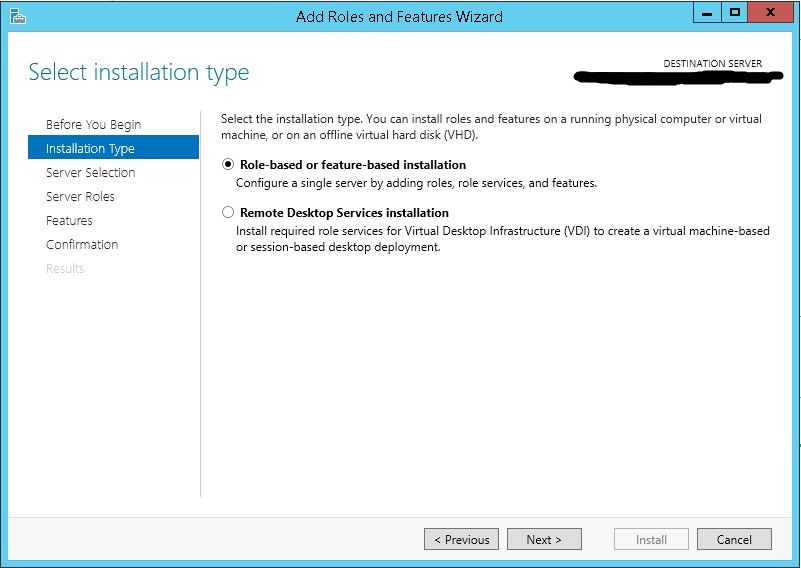
In ‘Installation Type’, by default ‘Role-based or feature-based installation’ will be selected and no need to change anything. Click on ‘Next’.


In ‘Server Selection’ make sure correct server name and IP address of your server is showing. Click on ‘Next’


In ‘Server Roles’ no need to select anything, just click on NEXT.


In ‘Features’ select ‘.NET Framework 3.5 Features’ and click on NEXT.


In ‘Confirmation’ tab you need to specify the correct source path, for this click on ‘Specify an alternate source path’


It will open new window and here in ‘path:’ specify the path where you have the Windows 2012 R2 set up files are there. The general location would be ‘G:\Source\Sxs\’


After giving the correct path click on ‘OK’ and click on ‘Install’.

This finishes the installation of Netfx3. Once you install this you can proceed with SQL Server installation which failed earlier.


Thanks VV!!