Wednesday, October 29, 2014

Could not insert a backup or restore history/detail record in the msdb database. This may indicate a problem with the msdb database.

The backup job of SQL Server 2008 databases started failing with below error:

Description: Error encountered during backup. Error: [Could not insert a backup or restore history/detail record in the msdb database. This may indicate a problem with the msdb database. An exception occurred while executing a Transact-SQL statement or batch.]

This error comes up due to several reasons and majority of the reasons are:

 There might be space issue in the drive\disk where database files reside or database. msdb database itself would be corrupt.

In our case both were the reasons, first when we had backup failure noticed there was space issue in drive, after releasing some space backups went fine. But after few days backups started failing again with same error, but this time there is no space issue and when tried to query backup related tables in msdb database it was throwing error basically few backup related tables in msdb are not accessible.

Msg 0, Level 11, State 0, Line 0
A severe error occurred on the current command.  The results, if any, should be discarded.
Msg 0, Level 20, State 0, Line 0
A severe error occurred on the current command.  The results, if any, should be discarded.

So we ended up restoring the msdb database with most recent available backup and that has fixed the issue. I don’t suggest rebuilding msdb  or any system database unless that’s the only option left, as this may lead to other issues. So be sure before you go for this option.


Thanks!!

Friday, September 26, 2014

How to automate post reboot verification of SQL Server.

Recently we have been facing an issue in one of our test servers. It is having new issue every time server gets rebooted, sometimes few databases go offline or would be stuck in middle of restore or SQL agent won’t come up and etc. Being a test server several people do rigorous testing’s on it and can’t blame anyone if they have modified any option for their testing purposes but at the end of the day everyone needs all the databases of the so called test server to be healthy and available all the times. So I have been searching for a way to automate the verification of stuff we need to in SQL Server every time it gets re-started.

Then I learnt that there is an option in SQL Server to execute stored procedure every time the SQL services get re-started.

By turning on the below option we can make any user defined SP to get executed automatically every time SQL services gets re-started. I have tested this on SQL Server 2005\2008\R2\2012\2014 versions successfully.

sp_procoption @ProcName = 'UserDefinedSP',               @OptionName = 'STARTUP',               @OptionValue = 'ON'

Note: We can turn this option ON for the SP’s that are in master database only. SP cannot contain INPUT or OUTPUT parameters.

I coined below simple SP which will verify status of all the databases after every time SQL services get re-started and sends mail notification.


Same way we can make use of this to verify different things of SQL Server.

Thanks!!

Tuesday, June 10, 2014

How to install SQL Server 2014


From 1st April 2014 Microsoft has made SQL Server 2014 Evaluation copy and other editions of it available, you can get information related to SQL 2014 in this link. I have downloaded the evaluation copy of it and installed. Below are the screenshots of step by step installation.

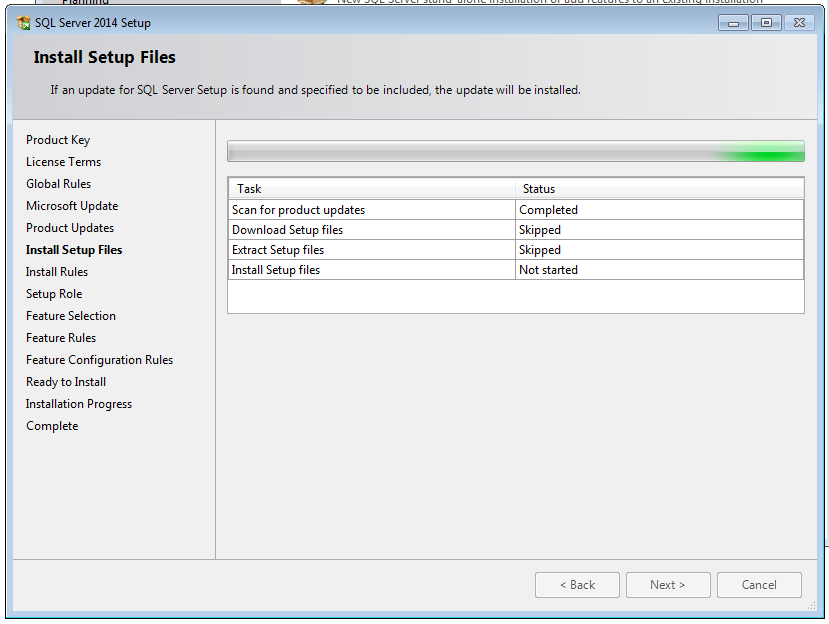
The installation is almost similar to earlier version, major difference is instead of installation wizard closing and opening multiple windows for license, global rules and then installing setup files and then actual install and etc.., now entire installation is done in a single window. Other than that in this version we can see ‘prerequisites for selected features and disk space requirements’ when we select a feature while installing, we had this in SQL Server 2012 as well. Rest all installation steps are same. 

Below is a quick walk through of the installation, as most of the steps are same as previous version I have just added the captures.

First Window after running setup.exe:


As we can see the ‘product key’, license, global rules are all on same window instead of separate.


Installation of SetUp Files:


Selection of required database features:


On right side we can see the prerequisites and space requirements for the features we select. I have selected only DB engine services.


Instance configuration same as earlier versions:


Screen shot showing installation in progress:


Installation completed successfully:


After restarting server, I have opened SSMS and it is the same as SQL Server 2012 version no major changes noticed.